Microsoft Teams Phone Gains Traction as Businesses Seek Unified Communication Solutions
Microsoft Teams Phone enables businesses to unify calling, meetings, and messaging in one platform. With cloud-based telephony, certified devices, and seamless Microsoft 365 integration, it supports hybrid work, reduces costs, and boosts productivity.
With hybrid work on the rise, Microsoft Teams Phone offers a scalable, secure, and cost-effective alternative to legacy phone systems.
In an era where remote and hybrid work environments have become the norm, Microsoft Teams Phone is rapidly emerging as the go-to cloud telephony solution for businesses seeking streamlined, unified communications.
Microsoft Teams Phone is a cloud-based telephony solution that integrates seamlessly with Microsoft Teams, offering businesses a unified communication platform. It enables users to make and receive calls via the Public Switched Telephone Network (PSTN) or Voice over IP (VoIP) directly within the Teams app, eliminating the need for traditional PBX systems.
Cloud-Based Calling: Facilitates VoIP and PSTN calls from any device running Teams, including Windows, iOS, and Android platforms. Advanced Call Management: Supports features like call queues, auto attendants, call forwarding, call transfer, call park, and group call pickup, enhancing call handling efficiency. AI-Powered Capabilities: Integrates with Microsoft 365 Copilot to provide real-time call summaries, transcriptions, and intelligent insights, aiding in note-taking and follow-ups .
Flexible PSTN Connectivity: Offers multiple options for connecting to the PSTN, including Microsoft Calling Plans, Direct Routing, and Operator Connect, allowing businesses to choose the best fit for their needs. Device Compatibility: Works with Teams-certified devices, such as IP phones and headsets, ensuring a consistent user experience across hardware. Shared Calling: Allows multiple users to share a single phone number, reducing the need for individual Direct Dial-In (DDI) numbers and associated costs. Mobile Integration: With Teams Phone Mobile, users can have a single phone number across all devices, and calls can be seamlessly transferred between devices .
By leveraging existing Microsoft 365 subscriptions, businesses can reduce costs associated with traditional phone systems and hardware maintenance.Combines calling, chat, and meetings into a single platform, streamlining communication and collaboration.Suitable for businesses of all sizes, from small enterprises to large corporations, with flexible licensing and deployment options.Built on Microsoft's secure cloud infrastructure, offering features like encryption, secure authentication, and compliance with various regulatory standards.
Overall, Microsoft Teams Phone offers a robust and integrated telephony solution for businesses seeking to modernize their communication systems within the Microsoft 365 ecosystem.
Microsoft Teams Phone transforms the Microsoft Teams platform—already a staple for collaboration and virtual meetings—into a fully-featured enterprise phone system. It allows users to make and receive traditional phone calls via the cloud, eliminating the need for legacy PBX infrastructure and desk phones tethered to physical offices.
"Teams Phone brings the simplicity of Microsoft Teams to voice communications," said a Microsoft spokesperson. "With native calling features, integration with Microsoft 365, and flexible deployment options, businesses can easily transition from on-premises systems to a modern, cloud-based voice solution."
Teams Phone supports a wide array of professional calling features, including voicemail transcription, auto attendants, call queues, and shared line appearances. Businesses can choose how they connect to the public telephone network—via Microsoft Calling Plans, Operator Connect, or Direct Routing with their own telecom provider. This flexibility allows organizations to preserve existing carrier relationships or consolidate everything under Microsoft’s ecosystem.
A Fit for Every Business Size
From small startups to large enterprises, Teams Phone scales to meet various organizational needs. Smaller businesses benefit from simplified licensing and low infrastructure costs, while larger enterprises can leverage robust features and international availability across more than 100 countries.
Integrated AI tools—including Copilot for Microsoft 365—further enhance productivity, offering live call transcription, summarization, and actionable follow-up notes.
Microsoft Teams Phone is a cloud-based telephony solution designed to support modern workplace communication. It extends Microsoft Teams from being just a collaboration and messaging tool to a fully functional business phone system. Here’s a deeper look into how it works and supports businesses:
How Microsoft Teams Phone Works
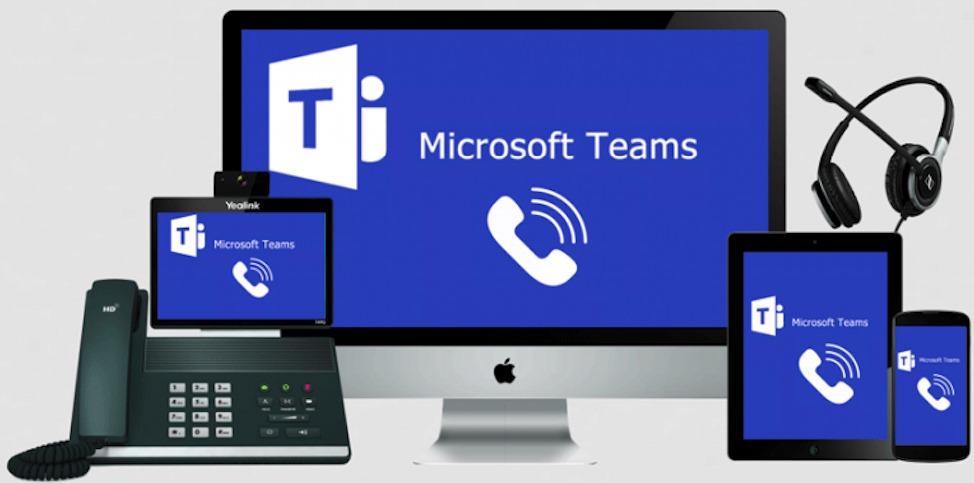
Integration with Microsoft Teams.Teams Phone is fully embedded into the Microsoft Teams interface, so users can make and receive calls, join meetings, chat, and share files in one place.Users can make/receive calls using their computer, smartphone, or tablet—no physical desk phone needed (though Teams-certified desk phones are also supported).
PSTN Connectivity Options.Businesses have several ways to connect to the Public Switched Telephone Network (PSTN):Buy phone numbers and PSTN calling services directly from Microsoft.Use your existing telecom provider by connecting a Session Border Controller (SBC) to Microsoft Teams.Choose a Microsoft-approved telecom provider for easy PSTN integration without needing to manage SBCs.
Telephony Features.Set up voice menus to direct callers to the right department or person.Manage high call volumes and distribute calls to available agents.Easily forward or transfer calls across Teams users.Voicemail is transcribed and delivered to email or Teams chat.Multiple users can manage a single phone line or group line.Place calls on hold and retrieve them from another device or user.With Teams Phone Mobile, one number can ring across both Teams and a native mobile network.
How It Supports Businesses
Cost Savings.Reduces the need for legacy PBX systems and hardware.Eliminates long-distance charges for internal calls.Bundles calling into existing Microsoft 365 subscriptions.
Global Scalability.Easy to deploy and manage across global locations.Supports local PSTN connectivity in over 60 countries with Operator Connect.Centralized management via the Microsoft Teams Admin Center.
Remote & Hybrid Work Support.Employees can take and make business calls from anywhere using the Teams app. Mobile-first features ensure seamless call transitions from desktop to mobile.Supports BYOD (Bring Your Own Device) environments.
Enterprise-Grade Security & Compliance.Built on Microsoft’s secure cloud infrastructure.Supports encryption, multi-factor authentication, and compliance with GDPR, HIPAA, and more.
AI & Productivity Features.AI summarizes calls, creates follow-up actions, and integrates call notes into meeting chats.Useful for accessibility and note-taking.Helps monitor performance, uptime, and call quality.
Support for Customer-Facing Roles.Integrates with Contact Center solutions via certified partners.Useful for sales, support, and service departments needing call routing, queueing, and monitoring.
Best Fit For: SMBs and large enterprises moving to cloud-based communication.Companies already using Microsoft 365 or Microsoft Teams.Distributed or remote teams needing unified calling and collaboration tools.
Step-by-Step Guide to Set Up Microsoft Teams Phone
Registering and setting up Microsoft Teams Phone involves several key steps, from choosing how you'll get your phone numbers to configuring users and call features. Here’s a step-by-step breakdown for a business owner or IT admin to register a phone number, select a provider, and configure the system:
Step 1: Assess Your Needs - Ask yourself:
How many users need phone numbers?
Do you want to buy calling plans from Microsoft or use your own telecom provider?
What countries will you operate in?
Do you already have Microsoft 365 licenses?
Step 2: Licensing Requirements - You need the right licenses:
Microsoft Teams Phone Standard or part of Microsoft 365 E5.
If using Microsoft’s Calling Plans: add Domestic or International Calling Plan licenses.
For Direct Routing or Operator Connect: only Teams Phone license is required.
Step 3: Choose Your PSTN Connectivity Option
Option A: Microsoft Calling Plan
Buy numbers and calling plans directly from Microsoft.
Available in select countries.
Easiest option for small to mid-sized businesses.
Option B: Direct Routing
Use your own telecom provider.
Requires a Session Border Controller (SBC) (cloud or on-premises).
More flexible, often used by large enterprises.
Option C: Operator Connect
Choose from Microsoft-approved telecom operators.
No SBC setup needed; the operator manages PSTN integration.
Easiest for businesses that already work with a specific carrier.
Step 4: Acquire Phone Numbers
For Microsoft Calling Plans:
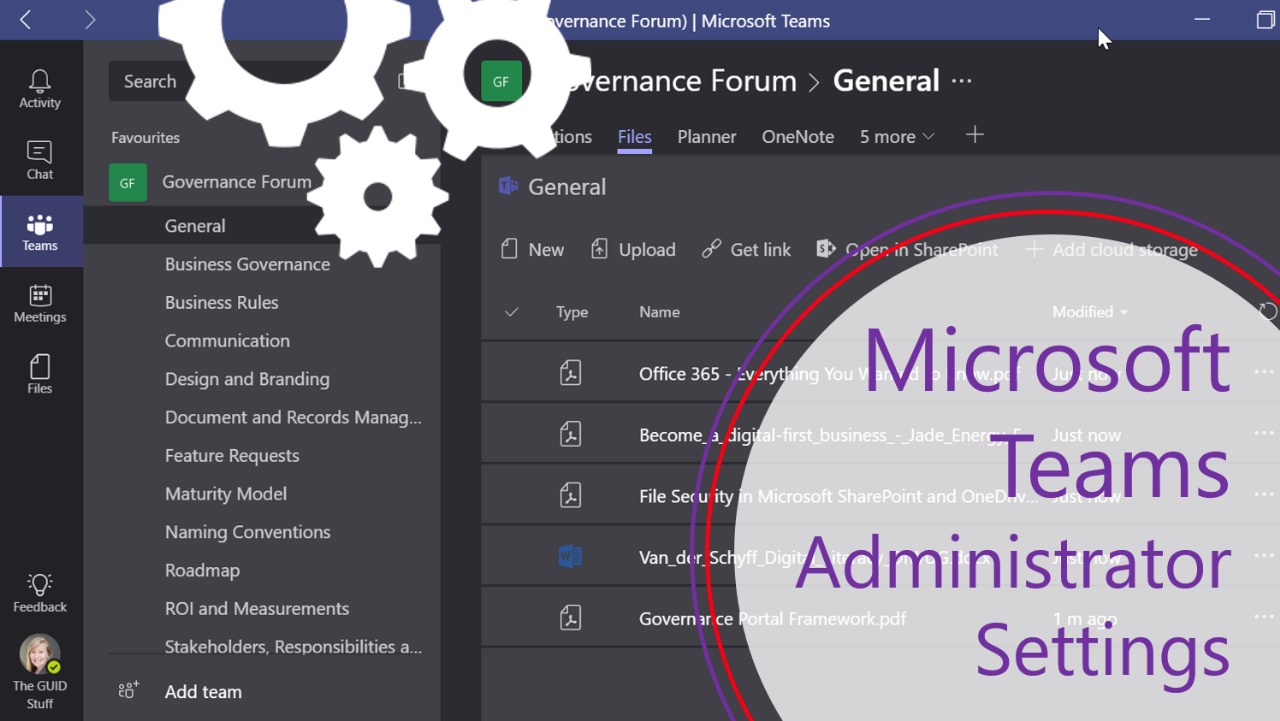
Go to the Microsoft Teams Admin Center.
Navigate to Voice > Phone Numbers.
Click Add, select New Number, choose country/region, number type (user, service), and quantity.
Assign numbers to users later.
For Direct Routing:
Contact your telecom provider to port or assign numbers.
Configure SBC to connect with Teams via PowerShell.
For Operator Connect:
In Teams Admin Center, go to Voice > Operator Connect.
Choose a provider, authorize the connection.
Select and assign numbers from the provider’s portal.
Step 5: Assign Phone Numbers to Users
Go to Teams Admin Center > Users.
Select a user.
Under Account > General information, click Edit.
Assign the user a phone number and set their emergency location.
Step 6: Configure Calling Features
Auto Attendants (Voice menu systems)
Call Queues (For routing to groups)
Voicemail policies
Caller ID policies
Call forwarding, parking, delegation
Navigate to Voice > Call Routing, Auto Attendants, Queues in the Admin Center.
Step 7: Test & Train
Test internal and external calls from different devices.
Train staff on Teams Phone calling features.
Set up Teams-certified desk phones or headsets if needed.
Step 8: Monitor & Maintain
Use Call Quality Dashboard and Teams analytics to monitor performance.
Update numbers, licenses, or policies as staff or business needs change.
Optional: Working with a Microsoft Partner
If you're not technically inclined, Microsoft partners and telecom providers can help:
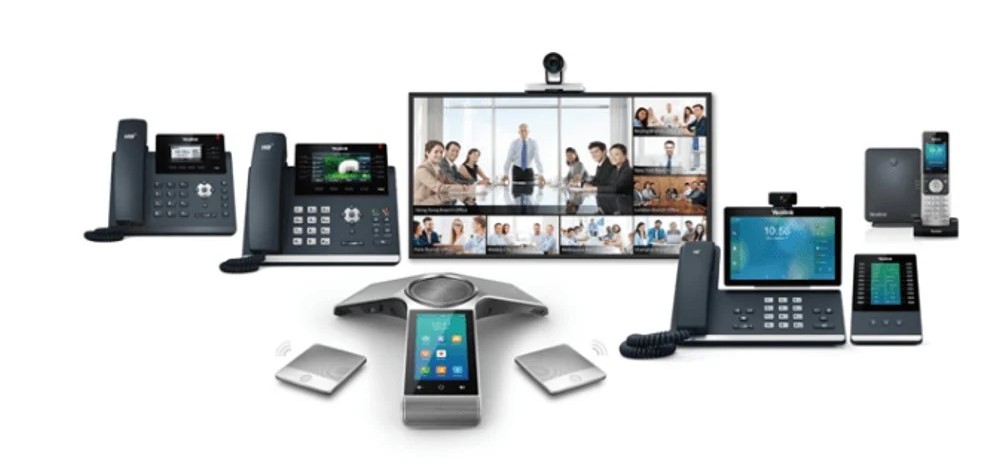
Microsoft Teams Phone is supported by a growing ecosystem of certified desk phones and peripherals. Brands such as Yealink, Poly, AudioCodes, and Lenovo offer Teams-native phones that deliver high-quality audio and intuitive touchscreen interfaces. These devices cater to a range of roles, from call center agents to executives. Using Microsoft Teams Phone brings several tangible benefits for businesses—especially those already using Microsoft 365. Below is a breakdown of the key benefits:
Top Benefits of Microsoft Teams Phone
All-in-One Communication Platform.Combines calls, chat, meetings, email, and file sharing in one unified app.Reduces the need for multiple communication tools or switching between platforms.
Cloud-Based & Scalable.Hosted in the cloud, so no need for on-premises PBX hardware.Scales easily as your team grows—whether you have 10 users or 10,000.
Remote & Hybrid Work Ready.Make and receive calls from anywhere using the Teams app on desktop, mobile, or web.Ideal for remote, hybrid, and mobile teams who need flexible calling.
Cost Savings.Reduces costs associated with traditional phone systems (hardware, maintenance, international charges).Can use existing Microsoft 365 licenses to add Teams Phone with minimal extra cost.Eliminates the need for separate VoIP or PBX subscriptions.
Enterprise-Grade Security & Compliance.Built on Microsoft’s secure cloud infrastructure with end-to-end encryption.Supports GDPR, HIPAA, and other compliance standards.Integrated identity and access management via Azure Active Directory.
Flexible PSTN Connectivity.Offers multiple options for phone service:Microsoft Calling Plans (simple, direct). Operator Connect (via approved telecom partners). Direct Routing (using your own telecom provider). Gives you the freedom to choose the most cost-effective or location-specific provider.
Advanced Call Features.Includes voicemail transcription, call queues, auto attendants, call transfer, and shared lines.Seamlessly handles high-volume calls and helps route them efficiently within departments.
AI and Productivity Tools.Integrated with Copilot AI for:Call summaries. Action items. Intelligent meeting notes. Transcription, captions, and insights enhance accessibility and meeting productivity.
Seamless Integration with Microsoft 365 Apps.Easily schedule or escalate calls from Outlook or SharePoint.Call transcripts and voicemails are available in Teams, Outlook, and OneDrive.Easy CRM, ERP, or Power Platform integrations via Microsoft Graph API and connectors.
Global Availability.Available in over 100 countries.Allows companies with international teams to use one system for local and international calling.
Easy Management & Analytics.Centralized admin portal to assign numbers, monitor usage, and manage call quality.Rich reporting tools for call analytics, quality dashboards, and user adoption metrics.
Ideal Use Cases
Businesses moving away from aging PBX or analog systems.
Companies embracing hybrid or fully remote work.
Microsoft 365 users looking for cost-effective unified communications.
Call centers or customer service teams needing queue management and automation.
Cost and Operational Efficiency
Adopting Teams Phone can also result in significant cost savings. By leveraging existing Microsoft 365 subscriptions and moving to a centralized communication platform, businesses reduce the overhead tied to multiple vendors and outdated telephony systems.
"Modern work demands modern tools," said a CIO at a mid-sized logistics company that recently switched to Teams Phone. "We’ve reduced communication costs by 35% while improving mobility and user satisfaction."
Microsoft Teams supports a range of certified business desk phones designed for seamless integration with Teams Phone. These phones provide native Teams interfaces, tight Microsoft 365 integration, and features like calendar access, presence, voicemail, and more.
Recommended Brands & Certified Desk Phones for Microsoft Teams
One of the most popular and widely adopted brands for Microsoft Teams. Yealink is a leading global brand specializing in voice and video communication solutions. Known for its high-quality VoIP phones, Yealink offers a range of Microsoft Teams-certified desk phones, conference devices, and video collaboration systems designed for seamless integration with modern business platforms.
Recommended Models:
Yealink MP56 – Mid-range touchscreen phone, ideal for general office users.
Yealink MP58 – Premium phone with large screen and optional wireless handset.
Yealink MP54 – Entry-level Teams phone with a 4-inch screen and built-in Teams button.
Yealink VP59 – Video phone with camera; great for executives and video meetings.
Key Features: Native Teams UI. HD voice, noise-canceling microphones. PoE support. USB/Bluetooth headset compatibility
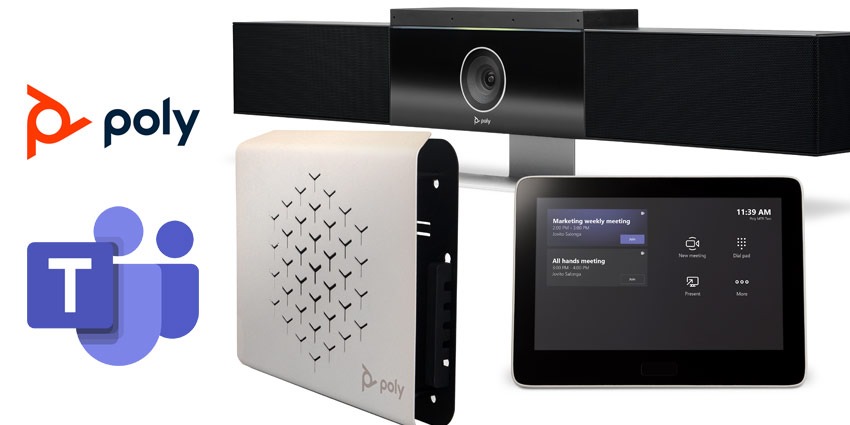
Poly, formerly known as Polycom, is a global provider of professional-grade audio and video communication solutions. Established in 1990, Polycom gained recognition for its innovative conferencing technologies. In 2018, it was acquired by Plantronics, and the merged entity was rebranded as Poly in 2019. In 2022, Poly became a subsidiary of HP Inc.
Recommended Models:
Poly CCX 400 – Entry-level desk phone with touchscreen and Teams integration.
Poly CCX 500 – Mid-tier phone with color touchscreen, Wi-Fi support.
Poly CCX 600 – Large screen phone for power users and execs.
Poly CCX 700 – Includes video camera and Android-based UI.
Key Features: Native Teams experience. Built-in Wi-Fi & Bluetooth (on some models). Superior voice quality with Poly HD Voice and Acoustic Fence
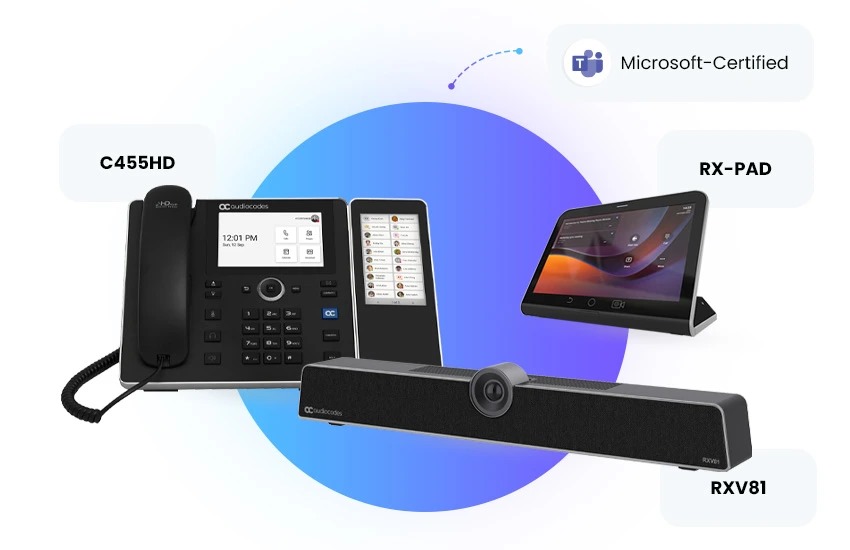
AudioCodes is a global provider of advanced communication software, products, and services for enterprises and service providers. The company's portfolio includes a range of Microsoft Teams-certified devices, such as the 400HD series of IP phones and the Room Experience (RX) suite of meeting room solutions. These products are designed to deliver high-definition voice quality and seamless integration with Microsoft Teams.
Recommended Models:
AudioCodes C450HD – High-end Teams-certified phone with a large touchscreen.
AudioCodes C448HD – Cost-effective alternative with smaller screen.
AudioCodes RX50 – Designed for meeting rooms but also usable as a shared desk phone.
Key Features: Native Teams app. PoE and Wi-Fi. Enterprise-grade security.
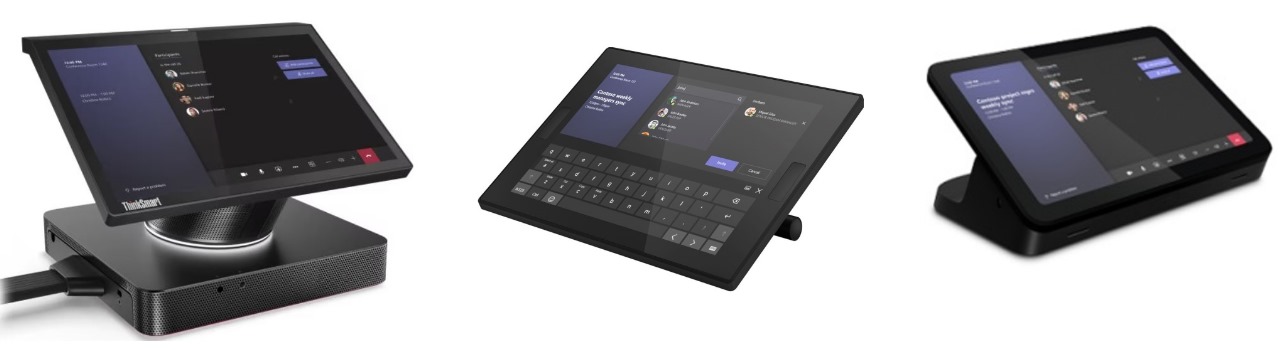
Lenovo ThinkSmart View. Not a traditional phone but a personal collaboration display with Teams built-in.Best for hot-desking or personal workstations where Teams video/audio access is needed.
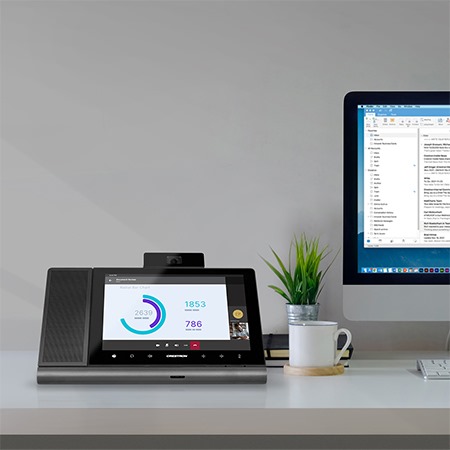
Crestron Flex Phones. High-end options primarily used in executive offices and front desks.Large displays, premium audio hardware, integration with Teams and Outlook.
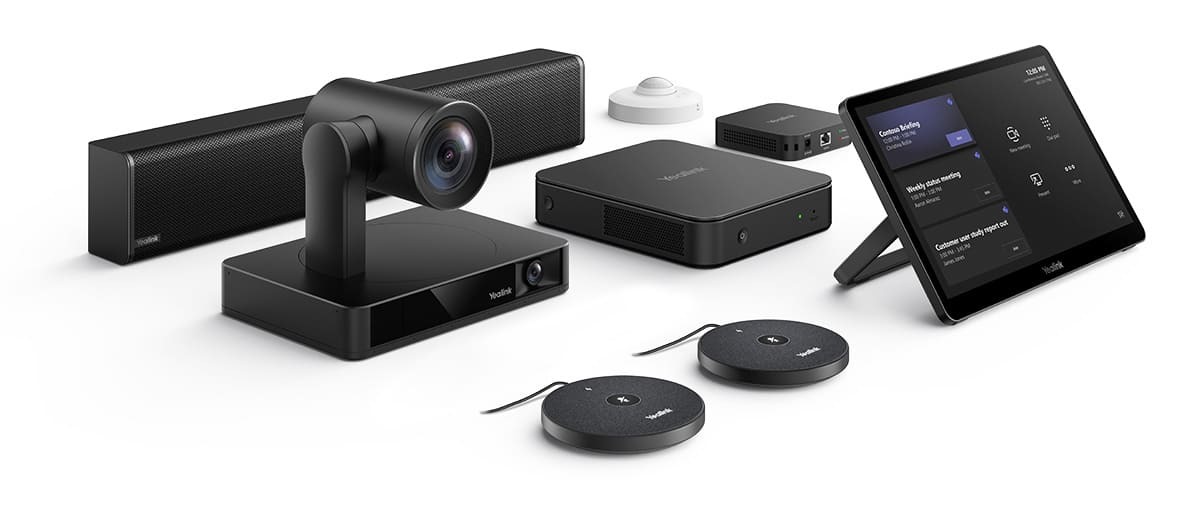
Other Certified Peripherals. If you don’t want a desk phone, you can also use: Microsoft Teams-certified headsets (Jabra, Logitech, Poly, Epos). USB speakerphones (e.g., Jabra Speak 750, Poly Sync 40). Conference room systems (e.g., Logitech Rally Bar, Yealink MVC series).
As digital transformation accelerates across industries, Microsoft Teams Phone is positioned to lead the evolution of business communication. With its blend of cloud flexibility, security, and deep Microsoft 365 integration, the solution is increasingly viewed as a strategic investment for organizations aiming to future-proof their communication infrastructure.